Improving gaming performance on your smartphone is mostly about giving your games more power, more space, and fewer distractions. With the right tweaks, even older devices can feel smoother and more responsive during gameplay.
Why Your Phone Struggles With Games
Smartphone games demand a lot from your device’s processor, graphics chip, RAM, and battery. When any of these are under pressure, you see lag, stutters, frame drops, overheating, or even crashes. Many performance problems come from:
-
Too many background apps using RAM and CPU.
-
Almost full storage, leaving no room for game data and cache.
-
Outdated system software or game versions.
-
High graphics settings that your device cannot handle comfortably.
The goal of optimization is to free up resources, reduce unnecessary workloads, and match game settings to what your phone can realistically deliver.
Step 1: Clean Up Storage for Smoother Gaming
When your storage is nearly full, your phone slows down and games struggle to load assets quickly.
-
Delete apps you don’t use, especially heavy social and video apps you can access in a browser instead.
-
Move photos and videos to cloud storage or an external drive.
-
Clear downloaded files and old media from messaging apps.
Aim to keep at least 10–20% of your total storage free. This free space allows your system and games to create temporary files without constantly fighting for room.
Step 2: Close Background Apps and Processes
Every open app uses memory and processing power, even if it’s minimized. Before gaming:
-
Close all non-essential apps such as browsers, social media, messaging, and video streaming.
-
Disable floating apps, bubbles, or overlays (like chat heads) that sit on top of your game.
This frees up RAM, reduces CPU load, and gives your game more resources to maintain a stable frame rate.
Step 3: Update Your System and Games
Updates are not just cosmetic; they often fix bugs and improve performance.
-
Check for system updates in your phone’s settings and install them when available.
-
Open your app store and update your games to the latest version.
Developers regularly optimize games for new devices, GPUs, and operating systems. Running old versions means you may miss performance fixes and crash patches.
Step 4: Lower In-Game Graphics Settings
High graphics look great, but they cost performance. If you see lag, stutter, or overheating:
-
Lower the resolution or select a “balanced” or “performance” profile in settings.
-
Reduce or turn off shadows, reflections, anti-aliasing, and high-detail textures.
-
Cap the frame rate to a stable value (for example, 30 or 45 fps) if your device struggles to maintain 60 fps.
A slightly lower visual quality with stable performance usually feels far better than beautiful graphics with constant stuttering.
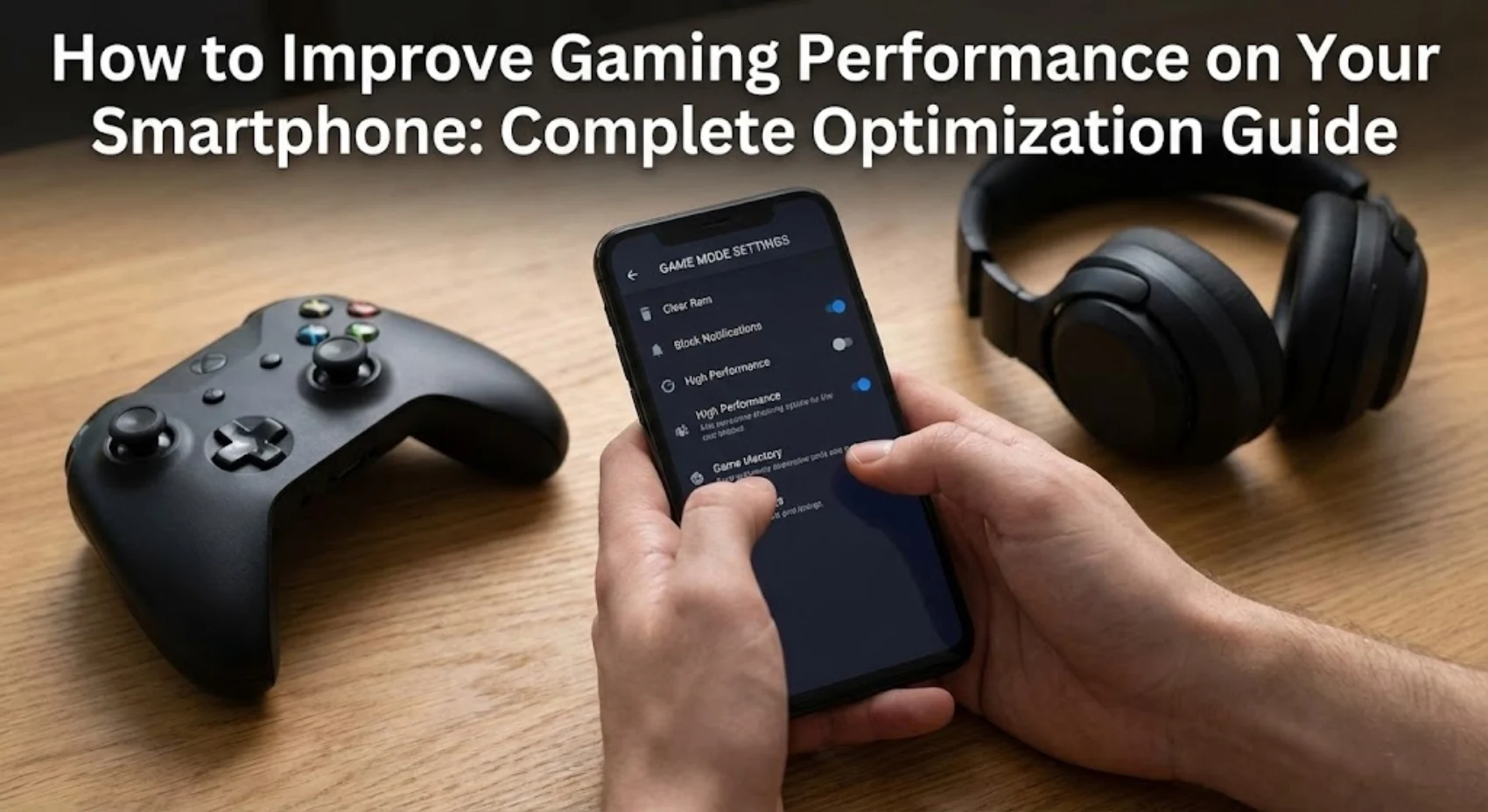
Step 5: Use Built-In Game Modes and Performance Tools
Many modern smartphones include a game mode or performance mode. These features typically:
-
Boost CPU and GPU performance while a game is running.
-
Block calls, notifications, and background tasks to reduce interruptions.
-
Allow quick access to screen recording or performance overlays.
Enable game or performance mode before playing, especially for competitive or graphics-heavy titles. Just remember that higher performance modes may drain your battery faster.
Step 6: Manage Temperature and Overheating
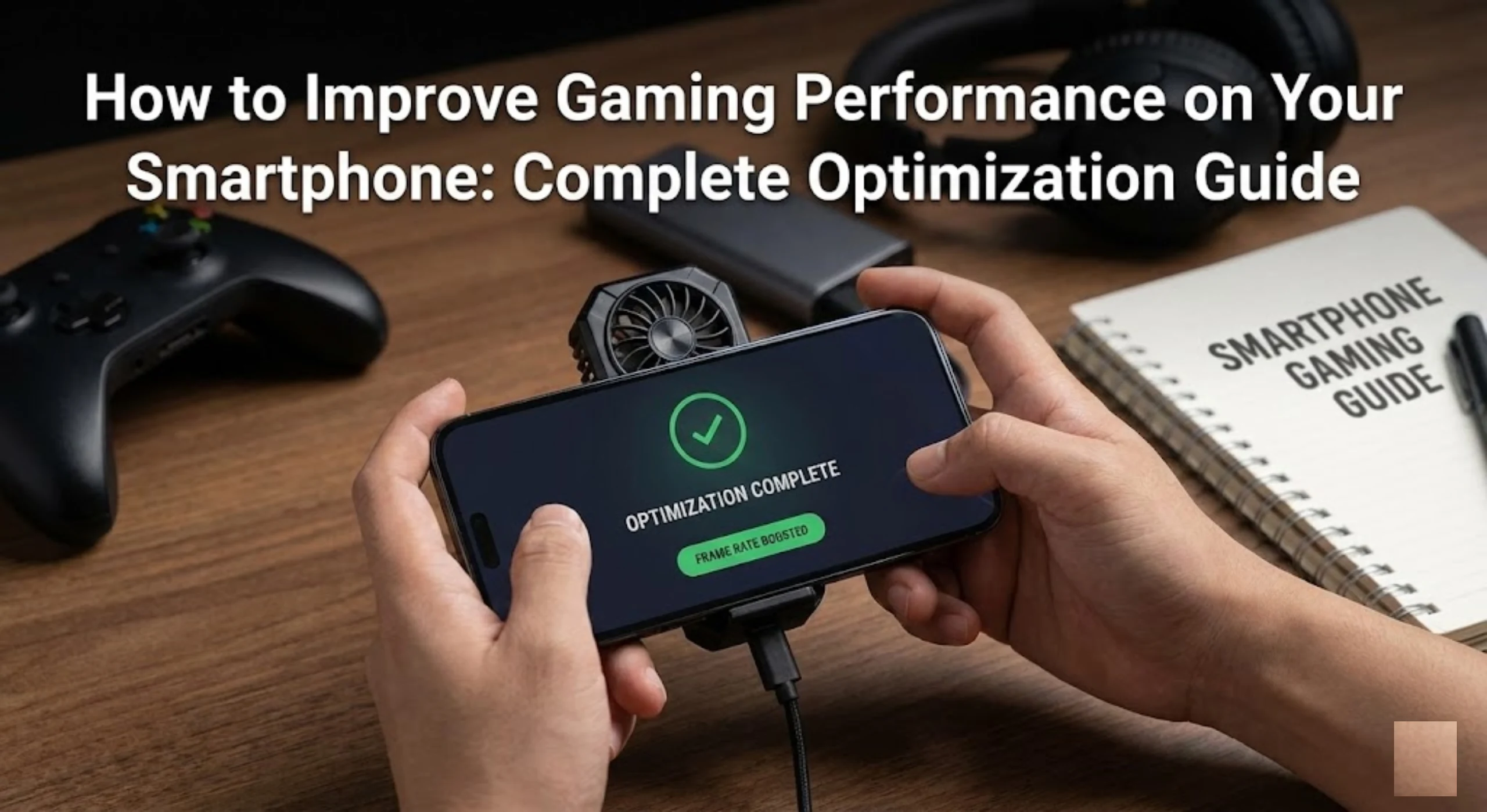
Overheating causes your phone to throttle performance, reducing CPU and GPU speed to protect the hardware. To avoid this:
-
Avoid playing while charging, especially with fast charging enabled.
-
Remove thick or insulated cases that trap heat during long sessions.
-
Take short breaks every 20–30 minutes during heavy gaming to let your device cool down.
-
Avoid playing under direct sunlight or in hot environments.
Cooler devices can sustain higher performance for longer, resulting in smoother gameplay.
Step 7: Optimize Your Network for Online Games
For online and multiplayer games, network quality is just as important as raw hardware power. Lag, rubberbanding, and delayed reactions often come from connection issues.
-
Use a stable Wi‑Fi connection when possible instead of mobile data.
-
Position yourself closer to the router or use the less crowded Wi‑Fi band if available.
-
Make sure other devices are not saturating the network with heavy downloads or streaming.
If you must use mobile data, stay in areas with strong signal and avoid moving quickly between coverage zones while playing.
Step 8: Tweak System Settings for Better Performance
You can squeeze more performance out of your phone with a few simple system tweaks:
-
Disable or reduce animations if your system allows it, making navigation snappier.
-
Turn off unnecessary widgets and live wallpapers that constantly update in the background.
-
Disable auto-sync for apps that don’t need to refresh in real time while you’re gaming.
These changes lighten the overall load on your system so your game can use more of the available power.
Step 9: Control Notifications and Distractions
Pop-up notifications, calls, and background alerts can freeze your game for a moment or cause input delays.
-
Enable “Do Not Disturb” or a similar mode that allows alarms but blocks other notifications while gaming.
-
Turn off notification previews that may show over the game.
Fewer interruptions mean fewer micro-freezes and a more consistent experience, especially in fast-paced titles.
Step 10: Consider Game-Specific Settings and Modes
Some games have their own internal optimization tools or modes:
-
Battery-saving mode inside the game that lowers effects but keeps gameplay intact.
-
Options to download high- or low-quality texture packs separately.
-
Adjustable controls, aiming sensitivity, or touch response that can improve your performance as a player even if hardware stays the same.
Spending a few minutes in each game’s settings menu often yields big gains in how smooth and responsive the game feels.
Step 11: Know Your Device’s Limits
No amount of tweaking can turn a very old entry-level phone into a high-end gaming device. If you still struggle with performance after optimizing:
-
Prefer lighter games or “lite” versions designed for low-end hardware.
-
Avoid max settings and online modes that strain both hardware and network.
-
When upgrading, look for phones advertised with gaming-focused features like higher refresh rate screens, larger RAM, and efficient cooling.
Accepting your device’s realistic limits helps you choose games and settings that deliver a satisfying experience instead of constant frustration.
Step 12: Build a Simple Gaming Routine
Turning optimization into a habit keeps your phone feeling fast over time. Before serious gaming sessions, make a quick routine:
-
Close background apps.
-
Enable performance or game mode.
-
Turn on Do Not Disturb.
-
Check that battery level and temperature are comfortable.
These small steps take less than a minute but significantly improve consistency, responsiveness, and overall enjoyment.