Look, we’ve all been there. You’re in the final circle, your fingers are flying, and out of nowhere your game turns into a frustrating slideshow. That gut-punch of lag isn’t just annoying; it feels personal. It ruins the moment and kills your rank. Before you consider hurling your phone or buying a new one, take a deep breath. I’ve been testing mobile games and troubleshooting phones for years, and I can tell you with total confidence: most lag is fixable. You don’t need to be a tech wizard. This is a practical, step-by-step guide for how to reduce lag in mobile games right now, in 2026, to get back to smooth, responsive gameplay. Let’s walk through this together, from the simplest fixes to the deeper tricks that feel like unlocking a secret settings menu.
What Type of Lag Are You Experiencing?
First, we need to figure out your enemy. Knowing whether you’re dealing with network or performance issues is the key to applying the right fix. This simple diagnosis will save you a ton of time.
Network Lag: The Online Multiplayer Killer
This is the delay caused by your internet connection. You’ll see icons like a yellow Wi-Fi symbol, experience “rubber-banding” where your character snaps back, or your actions just don’t register. This is all about your connection to the game’s server. If you’re wondering how to lower ping in iOS or Android games, you’re dealing with network lag.
Performance Lag: When Your Phone Can’t Keep Up
This is your phone’s hardware struggling. The screen stutters, feels choppy, or freezes during big fights. This means your phone’s processor (CPU) or graphics chip (GPU) is gasping for air. If your goal is to increase FPS on your phone and stop the stuttering, performance fixes are your target.
The First Response: 5 Quick Fixes You Must Try
These are the five-minute solutions that solve more problems than you’d think. Always start here.
Restart Your Phone (The Classic for a Reason)
I know, it’s the old “turn it off and on again.” But it works. It clears out your phone’s clogged-up short-term memory (RAM) and stops misbehaving background processes. Make this a weekly habit if you game a lot.
Master Your Wi-Fi Connection
For any online game, your Wi-Fi is the usual suspect. Get physically closer to your router. Walls and distance are signal killers. If your router broadcasts both a 2.4GHz and a 5GHz network, connect to the 5GHz one—it’s faster and has less interference. As a quick test, try switching to mobile data for a match (mind your data cap!). Sometimes a modern 5G connection is more stable than a congested Wi-Fi channel.
Close Every Other App
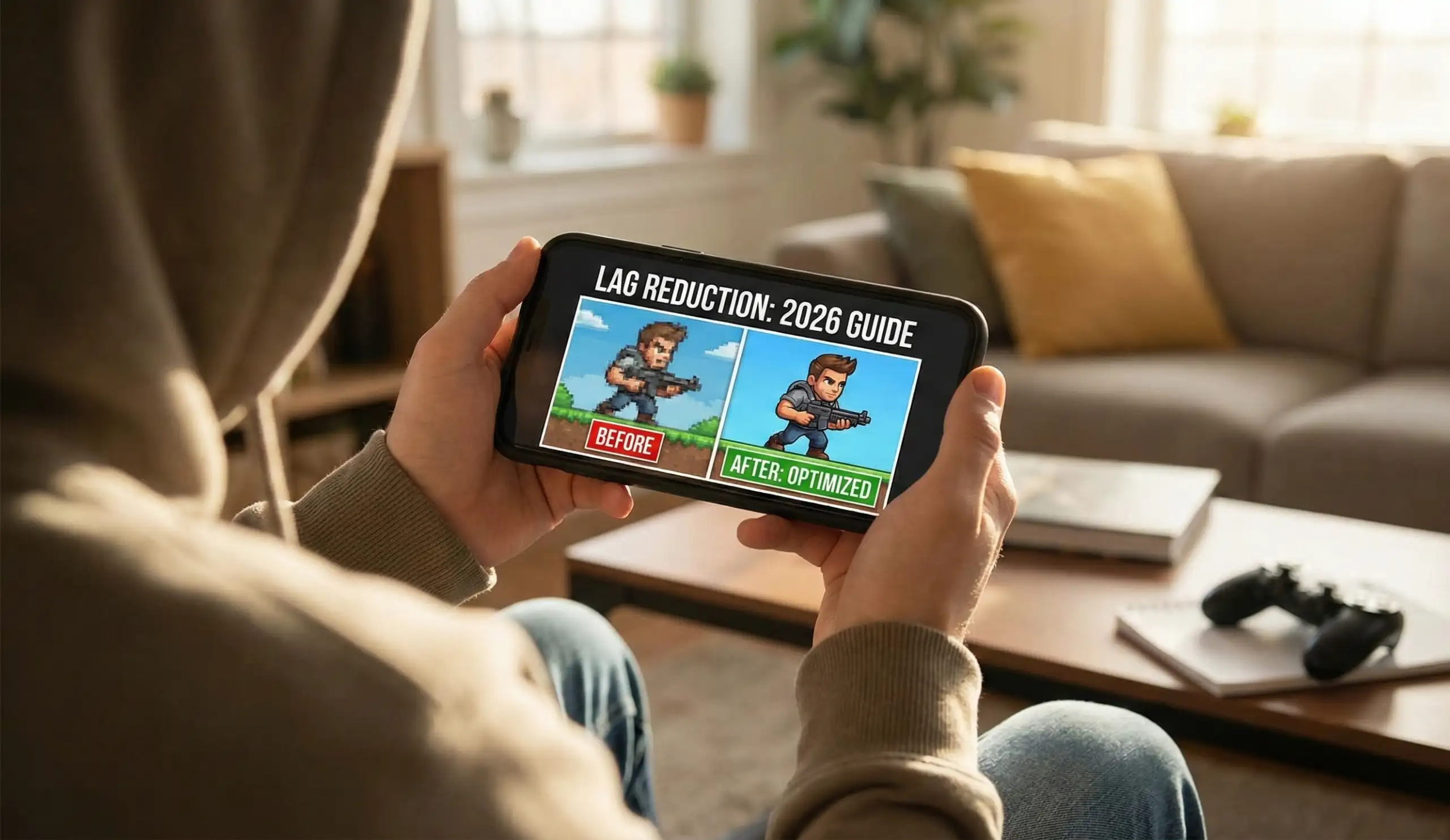
Every single app running in the background is taking a sip of your phone’s power and memory. On an iPhone, swipe up from the bottom and swipe away every app preview. On Android, tap the recent apps button and hit “Close All.” This alone can fix game stuttering on Android and iOS.
Kill Battery Saver / Low Power Mode
Find that battery saver icon and turn it OFF. Its whole job is to slow down your processor to save power. For gaming, you need every bit of speed. This is a non-negotiable first step to optimize your phone for gaming.
Update Everything
Go to the App Store or Google Play and update your game. Developers constantly push out performance patches. Then, check your phone’s own system updates in its Settings. These often include critical performance boosts.
Advanced Tactics to Boost Performance and FPS
If you’re still getting frame drops, it’s time to tweak some settings. This is where you’ll see the biggest gains in smoothness.
Lower Your In-Game Graphics Settings
Head into the game’s own settings menu. Look for “Graphics” or “Quality.” This is where you make smart trades for performance.
-
Graphics/Texture Quality: Drop this from Ultra to High, or High to Medium.
-
Frame Rate (FPS): Change it from 60 FPS to 30 FPS. A rock-solid 30 FPS feels smoother than a unstable 40-60.
-
Advanced Effects: Turn OFF “Shadows,” “Anti-Aliasing,” and “Special Effects.” These are resource hogs. This is the most direct way to increase FPS on your phone.
Enable Your Phone’s Hidden Game Mode
Most phones have a dedicated gaming dashboard. On Samsungs, it’s Game Launcher. On other Androids, a toolbar might appear when you launch a game. On iPhones, ensure Low Power Mode is off. These tools block notifications, prioritize performance, and prevent brightness dimming—key for a mobile gaming performance boost.
Free Up Crucial Storage Space
If your phone is packed with less than 10-15% free space, it chokes. It needs room to work. Go to your storage settings. Delete old downloads, clear app caches (especially for Spotify or Chrome), and offload videos. Freeing up 5-10GB can eliminate choppy gameplay.
Pro Network Fixes for Lower Ping and Stable Play
For the online warriors, these steps are your secret weapons against high latency and disconnections.
The Ultimate Stable Fix: Go Wired
Yes, you can use an Ethernet cable with your phone. Grab a USB-C to Ethernet adapter (or Lightning for iPhone), plug in a cable from your router, and experience zero wireless interference. It’s the absolute best way to reduce network latency on mobile.
Change Your DNS Server for a Faster Path
In your Wi-Fi settings, tap your network, go to advanced, and change the DNS to a faster public server like Cloudflare (1.1.1.1) or Google (8.8.8.8). This can shave milliseconds off your ping, a simple trick to lower ping in iOS and Android games.
Manage Your Home Network Traffic
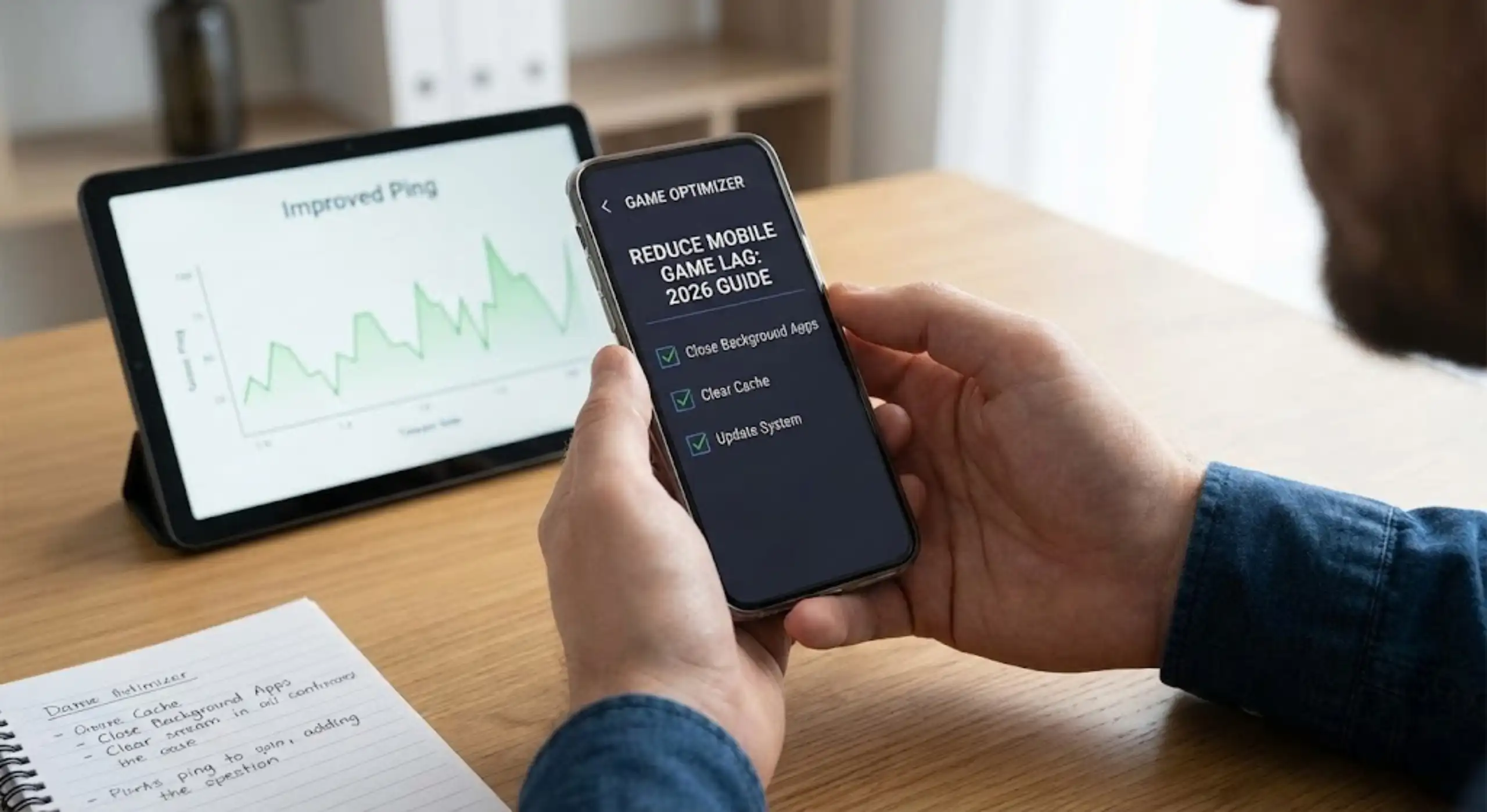
Is someone streaming 4K or downloading a huge file? That saturates your bandwidth. Try to game when the network is quiet, or use your router’s “Quality of Service” (QoS) setting to prioritize your phone’s traffic. This prevents others from causing your mobile game lag.
Last Resort Solutions for Stubborn Lag
If the lag monster persists after all that, here are two powerful final options.
Fight Overheating with a Cooling Fan
When your phone gets hot, it slows itself down to prevent damage—this is “thermal throttling.” A clip-on cooling fan keeps it cool, allowing it to run at full speed for your entire session. It’s a game-changer to stop phone overheating while gaming and the associated lag.
The Nuclear Option: Factory Reset (Backup First!)
If your phone feels slow and buggy overall, a factory reset wipes it back to like-new condition. ⚠️ You MUST do a full backup of your photos and data first. It’s a hassle to re-setup, but it clears out years of digital clutter and can make an older phone feel brand new, ultimately helping you fix mobile game stuttering at its root.
Your Smooth Gaming Session Awaits
The truth is, how to reduce lag in mobile games is about being a smarter player. It’s not always about having the best phone; it’s about setting up the phone you have to play its best game. Start with the simple stuff—the reboot, the closed apps, the graphics settings. 90% of the time, that’s all you’ll need. For the stubborn 10%, the deeper fixes are there. Your smooth, frustration-free gameplay is waiting. Now go get it.