
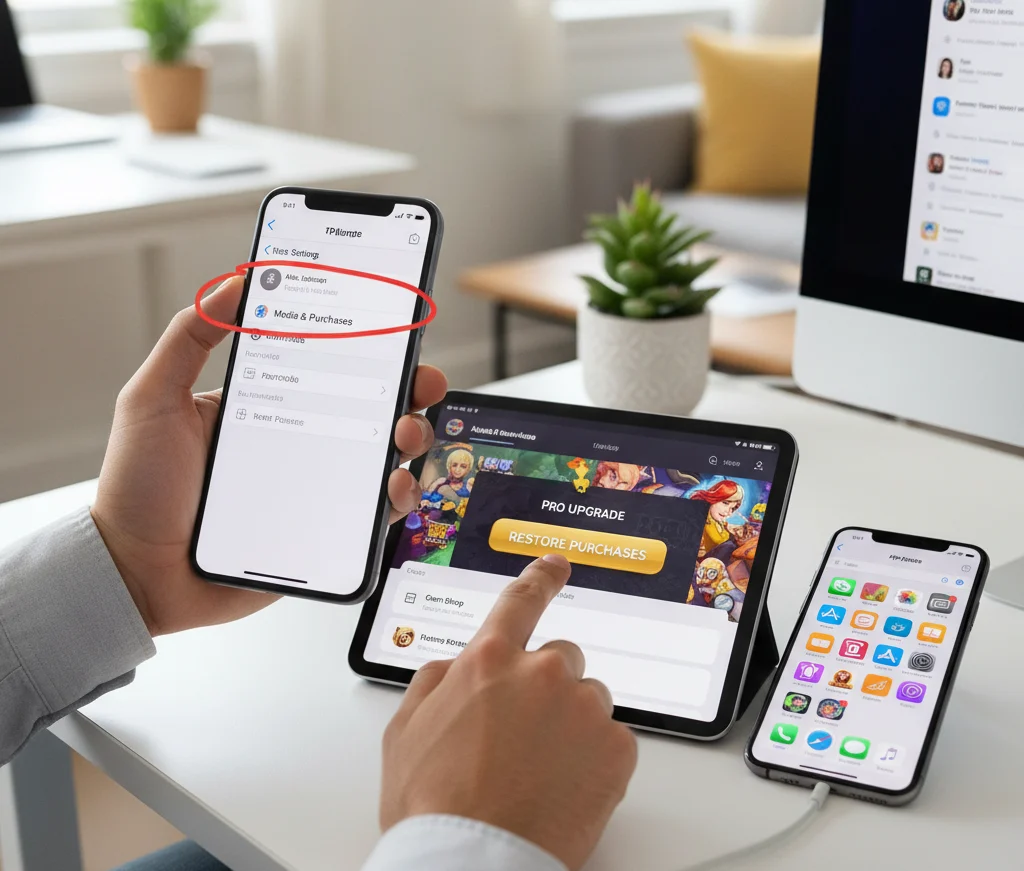
Restoring in-app purchases on iPhone or iPad is surprisingly common, whether you’re setting up a new device, reinstalling a favorite game, or troubleshooting after a major iOS update. Few things are more frustrating than paying for “Premium Pro Ultra Turbo Edition” (it always has a longer name, right?), only to discover you’re back at square one with ads. Don’t worry—it’s easier than you think to get those purchases back, and doing it right can save you time, money, and a lot of head-scratching. This guide will walk you through every step, explain why things sometimes go wrong, and help you avoid the most common pitfalls, all in straightforward, human language. Let’s get back what’s yours.
Why You Might Need to Restore In-App Purchases
If you buy anything fancy inside an app—whether it’s unlocking secret missions in a mobile game, turning off ads in your meditation app, or scoring a pro-level feature in your favorite photo editor—that’s an “in-app purchase”. Sometimes you might lose access to these purchases after updating your device, deleting and reinstalling the app, or switching to a new iPhone or iPad. Notably, only certain types of purchases can actually be restored—more on that in a minute.
Let’s set the stage with a real-life example: Emily swears by her workout app’s premium plan. She got a new iPhone, logged in for her daily plank challenge, and… nothing. Ads everywhere and her favorite “Advanced Abs” routine was locked. Turns out, all she needed was a simple restore. But the button wasn’t exactly glowing on the home screen.
Types of In-App Purchases: Consumable vs. Non-Consumable
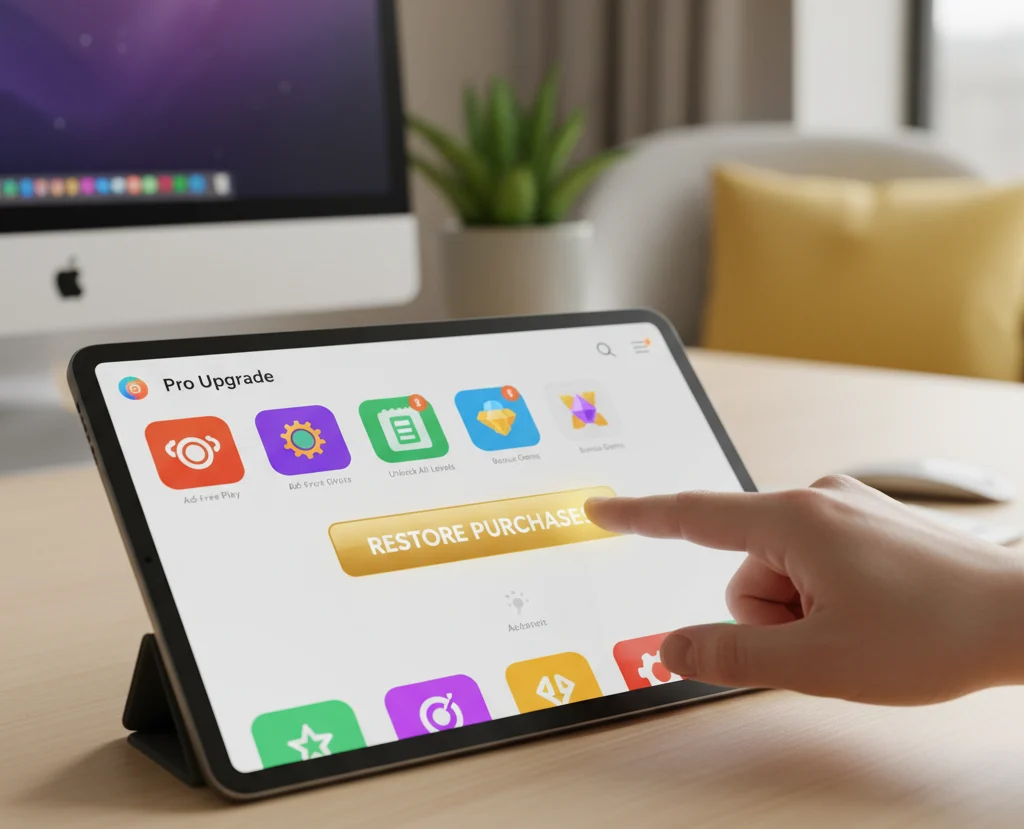
Before you start, it’s good to know what kind of in-app purchase you’re dealing with:
-
Consumable: Single-use items—like coins, hint packs, or health potions in games. Once used, they’re gone and can’t be restored.
-
Non-Consumable: One-time unlocks—such as removing ads, premium versions, or bonus features. These are tied to your Apple ID and can be restored on any device using that account.
-
Auto-Renewing Subscriptions: (e.g., monthly access to streaming services or fitness plans). These are also restorable if you’re signed in to the right account.
Imagine if vending machines worked like app purchases: You wouldn’t expect the snacks you ate yesterday to pop back up after you reset your phone! But a full-access membership? That should follow you.
Step-by-Step: How to Restore In-App Purchases on iPhone & iPad
Restoring your purchases usually just takes a few taps. Here’s how to get your premium features back:
1. Open the Right App
Launch the app where you made your in-app purchase. This might sound obvious, but a mistaken tap can lead to a wild goose chase through the App Store.
2. Find the Restore Option
Every app is a little different, but look for a button or link marked “Restore Purchases,” “Restore,” or something similar.
-
Common spots: Account/Profile page, Settings, Store, or Purchases section (sometimes a gear or three-dot menu).
-
If you’re lucky, it’s right on the main menu, but sometimes it’s a deep dive away (looking at you, kangaroo coloring book app).
3. Follow the On-Screen Prompts
Tap the “Restore Purchases” button. You may be prompted to enter your Apple ID password or use Face ID/Touch ID to verify your account.
4. Wait for Confirmation
If all goes well, you’ll see a message or notification that your purchases have been restored.
5. Restart the App
Sometimes changes take effect only after fully closing and reopening the app. If nothing happens, try turning your device off and on again.
6. Check Your Apple ID
Make sure you’re signed in with the same Apple ID you used for the original purchase. If you have multiple IDs (or borrowed your partner’s phone on vacation), things can get confusing quickly.
7. Redownload the App (if needed)
If you previously deleted the app, just reinstall it from the App Store like you would any other app. After downloading, repeat the steps above to restore purchases.
What If the Restore Option Doesn’t Work?
It can be frustrating when the “Restore Purchases” button seems to do… nothing. If you’re stuck:
-
Double-check your Apple ID, as even one wrong character will cause the process to fail.
-
Make sure in-app purchases are enabled: Go to “Settings” > “Screen Time” > “Content & Privacy Restrictions” > “iTunes & App Store Purchases” > “In-app Purchases.” Set to “Allow.”
-
Restart your iPhone or iPad.
-
Check your internet connection—restoring purchases needs an active connection.
If you’re still having trouble, most reputable app developers list a support email or contact form on their website. Explain what happened, include receipts if you have them, and most are quick to help (nobody wants a bad App Store review).
What Purchases You Can—and Can’t—Restore

This isn’t Willa Wonka’s Golden Ticket: Not everything can (or should) be restored.
-
CAN Restore: Permanent upgrades, premium modes, “Remove Ads,” subscriptions, special features unlocked for life—all tied to your Apple ID.
-
CAN’T Restore: One-time use items (coins, extra lives, mystery boxes, consumable points, etc.) aren’t linked to your account for restoration.
If your restored purchase doesn’t include everything you expected, double-check if those missing items were consumable, even if it wasn’t obvious at the time.
Real World Scenarios: How People Lose In-App Purchases
-
Switching Devices: You replace your old iPhone with a shiny new one. Your progress follows you—usually—but some app purchases need manual restoration.
-
Delete/Reinstall: Sometimes apps misbehave, so you uninstall and reinstall. Your purchases might not restore automatically.
-
Family Sharing: Each family member has their own Apple ID. Non-consumable purchases should be restorable for everyone in the group, but some developers restrict access. When in doubt, check the app’s own help section.
-
Restore Fails: It can be as simple as a typo in your Apple ID—or a bug in the app.
Pro Tips to Prevent In-App Purchase Woes
-
Always use the same Apple ID for purchases, especially when setting up a new device for yourself or giving a family member access.
-
Keep your receipts: Apple emails one each time you buy something in-app. It’s your best friend if you need to sort things out with the developer.
-
Make a note: If you frequently restore many purchases (like after beta-testing new iOS versions), jot down which purchases are most important, so you can check them quickly.
-
Apps aren’t all created equal—some indie developers may have trouble if their restore process breaks. If you find frequent issues, let them know (nicely!).
Troubleshooting: Common Questions and Fixes
Q: The restore button doesn’t do anything. What now?
-
Check your internet connection.
-
Try force-closing and reopening the app.
-
Restart your device.
-
Make sure you’re using the correct Apple ID.
-
Still stuck? Email the app developer (often found under “Support” in the App Store listing).
Q: My consumable purchases (like extra coins) aren’t back!
-
Unfortunately, consumable purchases cannot be restored. Consider it motivation to conquer that level without help this time, or check if your app offers “customer care” for mistakes.
Q: Can I restore in-app purchases if the app was removed from the App Store?
-
If you’ve already downloaded the app and it’s no longer available, the restore function might not work. Always download and restore as soon as possible if you know an app is being delisted.
What to Do If You’re Charged Twice
If your restoration didn’t work right away and you repurchased something, don’t panic.
-
Check your purchase history: Settings > Your Name > Media & Purchases > View Account > Purchase History.
-
Report the problem: Visit Apple’s “Report a Problem” page online. Select the problematic charge and request a refund if it was an accidental duplicate.
Restoring Peace of Mind
Restoring in-app purchases can feel like digital detective work, especially when apps bury the restore button beneath five menus (developers, if you’re reading this, please… make it obvious!). The good news: As long as your purchases were non-consumable or active subscriptions, you’re rarely more than a couple of taps from getting everything back—so you can enjoy your ad-free Sudoku, digital art upgrades, or VIP meditation lessons without interruption.
Remember: Don’t panic, double-check your Apple ID, and follow the practical steps above. Next time you’re about to launch into a dramatic chat with customer support, take a breath and try these fixes—your premium access is probably just a menu away.